
Dashboard
The dashboard is where you land after signing in, unless you have chosen a landing page. It is the index of everything your account can open.
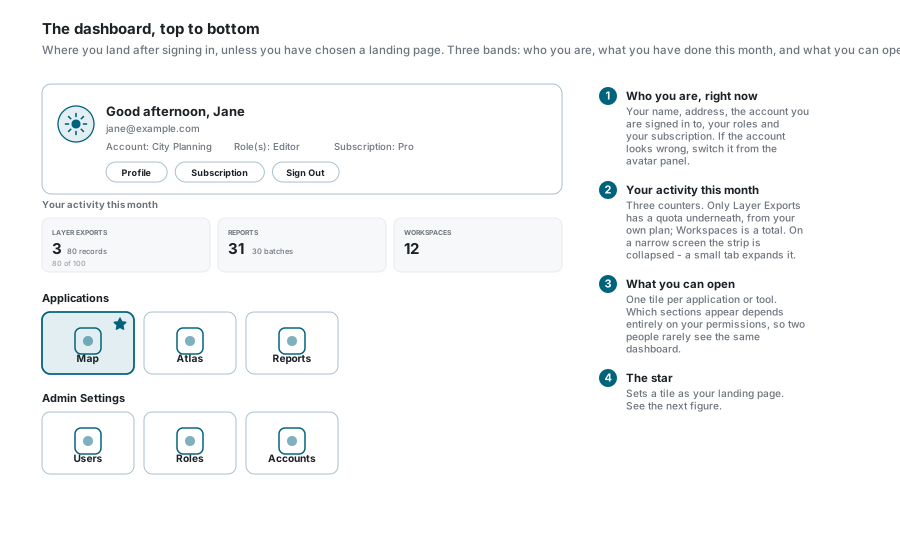
The greeting card
The card at the top tells you, in one place, which account you are working in:
| Shown | Meaning |
|---|---|
| A greeting and your name | Changes with the time of day. |
| Your email | The address you signed in with. |
| Account | The account you are currently in. If it is the wrong one, switch it from the panel behind your avatar - you do not need to sign out. |
| Role(s) | What you are allowed to do in that account. If there are several, the extra ones appear as a small chip you can hover. |
| Subscription | Your own plan in this account. It shows only where your deployment uses subscription plans. |
| Profile, Subscription, Sign Out | Shortcuts. Subscription only appears where your deployment offers it. |
If a tile is missing, check the account first
The same person can see different tiles in different accounts. The account name on this card is the quickest way to tell which one you are in.
Your activity this month
Under the greeting is a strip of three counters covering the current calendar month:
| Counter | Counts | The line underneath |
|---|---|---|
| Workspaces | Workspaces you own in this account, in total | Not monthly, and not a quota |
| Layer Exports | Export jobs started this month, and their records | How much of your monthly allowance you have used: the records in this month's completed exports |
| Reports | Print-report jobs started this month. The batches figure beside it counts the ones that finished: each finished report is one file | None - reports have no quota |
Only Layer Exports has a quota line - "80 of 100", or "80 (unlimited)" where there is no limit. The limit comes from your own subscription plan in this account, not from the account as a whole, so ask your administrator if you need more.
Collapsed on a narrow screen
On smaller screens the strip starts collapsed, with a small tab to pull it open. Your choice is remembered, and it follows you across tabs in the same browser.
If the strip cannot load - during a database problem, for example - it simply does not appear. Nothing else on the dashboard is affected.
The tiles
Below that come the sections of tiles. Each tile is one application or tool: hover to highlight, click to open.
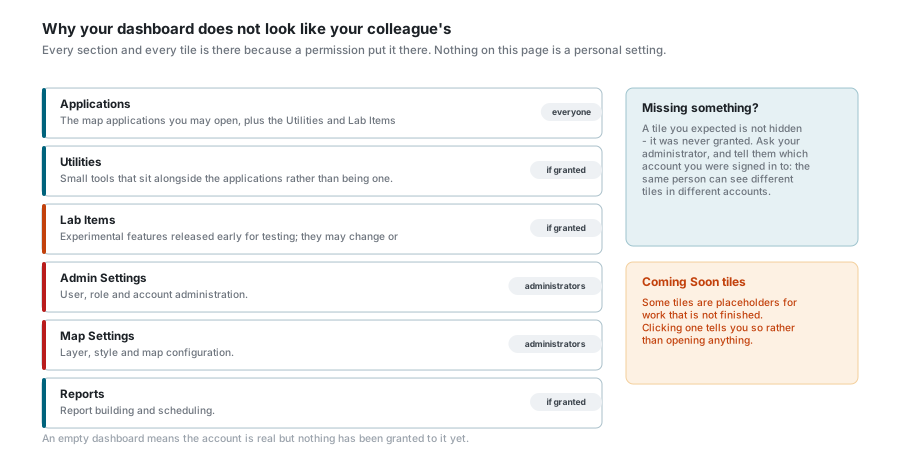
| Section | What is in it |
|---|---|
| Applications | Your map applications. Two sub-groups can appear inside it: Utilities (small tools that sit alongside the applications) and Lab Items. |
| Lab Items | Experimental features released early for testing. They can change, and they can disappear. |
| Admin Settings | User, role and account administration. Administrators only. |
| Map Settings | Layer, style and map configuration. Administrators only. |
| Reports | Report building and scheduling, where you have access. |
Every section and every tile is there because a permission put it there. None of it is a personal setting, and nothing is hidden by mistake - a tile you expected simply was not granted. Ask your administrator, and tell them which account you were in.
Coming Soon
Some tiles are placeholders for work that is not finished. Clicking one tells you so rather than opening anything.
An empty dashboard means the account is real but nothing has been granted to it yet.
Choosing a landing page
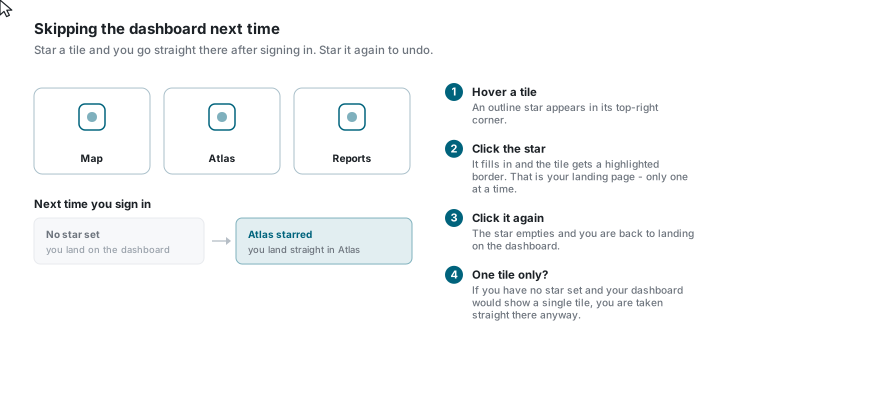
If you always open the same application, you can skip the dashboard:
- Hover a tile. An outline star appears in its top-right corner.
- Click the star. It fills in and the tile gets a highlighted border. That is now your landing page.
- Click it again to remove it and go back to landing on the dashboard.
Only one tile can be starred at a time - starring another moves it.
One tile only
If you have no star set and your dashboard would show a single tile anyway, you are taken straight to it after signing in.
Getting back to the dashboard
However you left it, the application's home or logo link brings you back. Setting a landing page does not remove the dashboard - it only changes where signing in drops you.
If something looks wrong
| What you see | What it means |
|---|---|
| A tile you expected is missing | It was never granted to this account, or you are signed in to a different account than you think. Check the account name on the greeting card. |
| The dashboard is completely empty | The account works but has no applications granted yet. Ask your administrator. |
| No activity strip | Either it failed to load, or you are on a narrow screen with it collapsed - look for the small tab. |
| An import or export is refused | An export may not fit in what is left of the monthly quota shown under Layer Exports. A new-layer import has a limit of its own, a total rather than a monthly one: see How many new layers you may create. |
| Clicking a tile does nothing but show a message | It is marked Coming Soon. |
| You never see the dashboard | You have a landing page set. Remove the star from that tile. |
| No Subscription button | Your deployment does not offer subscription self-service. |
See also
- Sign In - what happens before you get here
- Profile Settings - switching accounts, and the avatar panel
- Workspaces - what the Workspaces counter is counting
- Background Jobs - the export and report jobs the other counters cover