
Connect an AI Assistant
You can connect an AI assistant such as Claude, ChatGPT, Microsoft Copilot, Cursor or Visual Studio Code to the application. It can then answer questions about the map layers and records you can see - "which layers do I have?", "list the properties in this suburb without a street address" - and work with the answers. It reads only; it cannot change anything. Besides listing records, it can count and summarise them (how many per ward or per month, totals and averages) and answer questions about places: what is nearest to a point, what lies within a distance, what is at a spot, and how many records fall in each area.
The assistant connects through the application's MCP server (Model Context Protocol, the standard these assistants use to reach other systems). You sign in and agree once; after that the assistant asks the application on your behalf.
Your organisation decides
Connecting is off until an administrator switches AI access on for your organisation, and your role must allow it. If the consent screen says AI access is switched off for this organisation or Your role here does not allow connecting an AI assistant, ask your administrator.
The server address
Open your profile and press Connected apps at the bottom of the page. The dialog shows the server address to give the assistant, with a Copy button. It is your site's address followed by /mcp, for example https://maps.example.com/mcp.
The button only appears once one of your organisations allows AI assistants, or when you have already connected one.
Connecting
In the assistant, add a connector (or MCP server) with the server address:
- Claude: Settings > Connectors > Add custom connector.
- ChatGPT: Settings > Connectors, with developer mode on.
- Visual Studio Code, Cursor and other editors: add an MCP server of type HTTP with the address.
The assistant opens the application's sign-in page in your browser. Sign in as usual, with two-factor sign-in if your organisation uses it.
The consent screen shows which assistant is asking and where it will send you back to. If the assistant runs on your own computer (a desktop or terminal app), it says so.
Tick the organisations the assistant may read. The one you are signed in to is ticked already; tick any others you belong to. An organisation that cannot be ticked is greyed, with the reason.
Tick Also allow personal information only if you need names or contact details in the answers. The box is offered only when the assistant asked for it and an organisation you ticked allows it, and personal information comes only from the organisations that allow it.
Press Allow. You go back to the assistant, which is now connected. Cancel connects nothing.
If an organisation you ticked requires it (it does unless an administrator switched it off), Allow first asks for the code your authenticator app shows: type it and press Verify. One code covers every organisation you ticked. The first time, scan the QR code it shows with an authenticator app (Google Authenticator, Microsoft Authenticator, Authy and the like) before you type the code, and after Verify save the recovery codes it shows once. This does not depend on your organisation's own sign-in, which need not use two-factor.
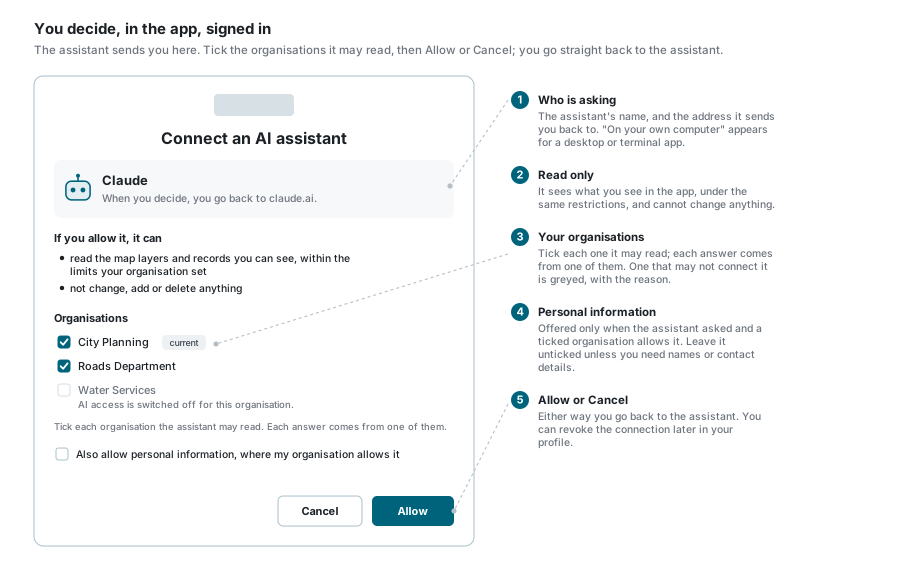
The assistant can read every organisation you ticked. Each answer comes from one of them, exactly as you see that organisation in the application; nothing is combined across them. Name the organisation in your question ("in Permian Water, how many meters...") to choose it. If you don't, and more than one of them has the layer, the assistant asks you which organisation you mean; otherwise it uses the one that has it, and says which one answered. To add or remove an organisation, connect again.
What the assistant can see
Exactly what you can see in the application, in each organisation you ticked, and no more:
- Layers: only those you may view there, and only those your administrators have not kept away from assistants.
- Records: only those your map area, the layer's filters and your organisation's restrictions let you see. Counts and statistics cover the same records. On a layer your administrators open to statistics only, the assistant can count records but not list them, and gives no figure below five.
- Columns: the ones the data table shows you, unless the layer keeps them out of exports, and on a layer you may download, the other columns its export gives you. A column that holds personal information (names, phone numbers, email and home addresses) is withheld unless your organisation allows personal information and you ticked the box. Special categories, such as ID numbers, are never sent.
- Shapes: a record's outline when you ask for it, such as an erf's boundary, for any record you may see. A very detailed outline comes simplified.
- Attachments: a record's photos and files, in the two groups the data table shows: the photos in the record's own photo columns, and the files attached to the record as a whole. Photos come back as pictures the assistant can show you in the chat, a few at a time; other files, such as PDFs, are listed by name. A photo column that holds identity documents is never sent.
- Settings, for a Site Administrator: if your role is Site Administrator, the assistant can also read the application's own settings and records, everything the administration screens show you: accounts, roles, users' memberships, layers and their permissions, connections, logs and the rest. Passwords, keys and other secrets are never sent.
- Limits: at most a set number of records per question (your organisation chooses it, 200 unless changed) and up to 60 questions a minute.
It cannot add, change or delete anything, and it never sees your password.
What the records say is data
Record values are passed to the assistant as data from your organisation's records, not as instructions. Treat an answer like any other report: check what matters before acting on it.
Connected apps
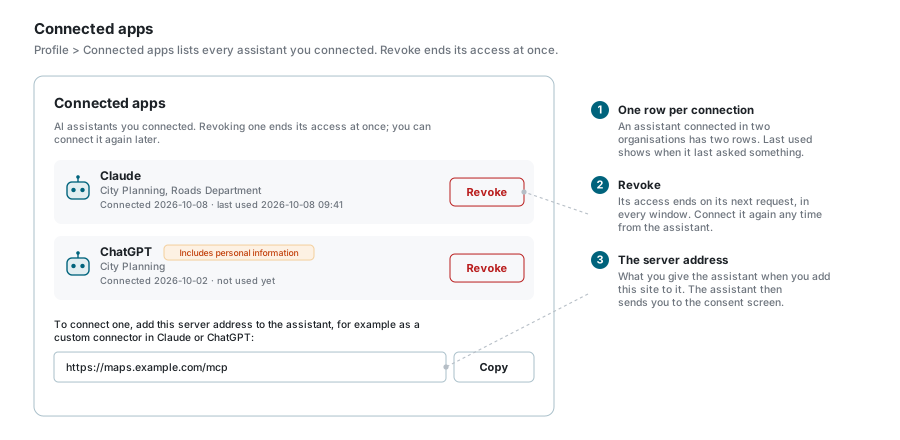
Profile > Connected apps lists every assistant you connected, with its organisations, when you connected it and when it last asked something. Revoke ends its access at once; you can connect it again from the assistant whenever you like.
When a connection stops by itself
The assistant stops reading an organisation when that organisation switches AI access off or no longer allows that assistant, when your role there no longer allows connecting, when you are removed from it, or when its administrator revokes your connection there. It keeps working in the other organisations you ticked. You have to connect again when none is left, and when:
- you change your password, or use Sign out of all devices;
- 90 days have passed since you connected (the assistant renews its access quietly until then).
Privacy
The questions you ask and the records the assistant reads are processed by the assistant's provider under its own terms, possibly in another country. Your organisation accepted this when it switched AI access on. The application keeps a record of each request (who asked, through which assistant, which layer and how many records), never the records themselves.